
C
Develop the Application Backend (RH850)
This topic guides you through the steps to create and build the application's backend using GHS MULTI IDE. The backend enables the application's UI to communicate with the platform and get the required information from the hardware. In this case, the device interface gets the status of the on-board user button. The following diagram describes the interaction between the two components:
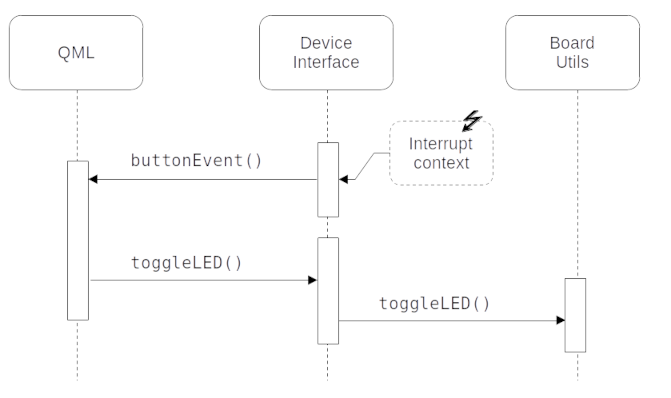
Develop the C++ backend
The following instructions guide you through the process of developing the C++ backend for your application:
- Create a new file named
main.cppin any directory. The directory will be referred to as BACKEND_DIR:#include "YourProject.h" #include <qul/application.h> #include <qul/qul.h> int main() { Qul::initHardware(); Qul::initPlatform(); Qul::Application app; static YourProject item; app.setRootItem(&item); app.exec(); return 0; }
This contains the default entrypoint for the application. You will extend this entrypoint later with extra configuration steps to use the LED and user button. Refer to the entry point to Qt Quick Ultralite applications for more information. Make sure to use the same project name (YourProject) that you chose in the earlier chapter.
- Create new C++ source and header files and name them
deviceinterface.cppanddeviceinterface.hrespectively. Save these files in the BACKEND_DIR directory that you just created. - Replace the contents of
deviceinterface.hwith the following:#ifndef DEVICEINTERFACE_H #define DEVICEINTERFACE_H #include <qul/signal.h> #include <qul/singleton.h> #include <qul/eventqueue.h> typedef int HWButtonEvent; class DeviceInterface : public Qul::Singleton<DeviceInterface>, public Qul::EventQueue<HWButtonEvent> { public: Qul::Signal<void(int button)> buttonEvent; void onEvent(const HWButtonEvent &inputEvent); void toggleLED(); }; #endif //DEVICEINTERFACE_H
The header declares the
DeviceInterfaceclass, which inherits from Qul::Singleton and Qul::EventQueue. It also declares thebuttonEventSignal and theHWButtonEventevent type. This allows the Singleton object instance to be globally available. It provides an interface between C++ and QML, to emit the changed signal on receiving theHWButtonEventinput event. For more information, refer to Defining Singletons in QML and Transferring data from Interrupt Handlers to QML. - Similarly, replace the contents of
deviceinterface.cppwith the following:#include "deviceinterface.h" #include "boardutils.h" void DeviceInterface::onEvent(const HWButtonEvent &inputEvent) { buttonEvent(inputEvent); } void DeviceInterface::toggleLED() { BoardUtils::toggleLED(); }
- Create a new C++ source and header files pair and name them
boardutils.cppandboardutils.hrespectively. Save these files in the BACKEND_DIR directory. - Replace the code in
boardutils.hwith the following:#ifndef BOARDUTILS_H #define BOARDUTILS_H namespace BoardUtils { void configure(); void toggleLED(); } // namespace BoardUtils #endif //BOARDUTILS_H
- Add the RH850-D1M1A-specific implementation of
BoardUtils::configure()andBoardUtils::toggleLED()toboardutils.cpp:#include "boardutils.h" #include "deviceinterface.h" #include "r_typedefs.h" #include "r_bsp_hmi_api.h" #define LED_NR 0 #define LED_BRIGHTNESS_ON 100u #define LED_BRIGHTNESS_OFF 0u void button_handler() { DeviceInterface::instance().postEventFromInterrupt(0); } namespace BoardUtils { void configure() { R_BSP_HMI_Init(); R_BSP_SetButtonCallback(BSP_BTN_CENTER_PRESS, button_handler); R_BSP_HMI_SetLed(LED_NR, LED_BRIGHTNESS_OFF); } void toggleLED() { static bool isOff = true; R_BSP_HMI_SetLed(LED_NR, isOff ? LED_BRIGHTNESS_ON : LED_BRIGHTNESS_OFF); isOff = !isOff; } } // namespace BoardUtils
The configuration function calls BSP-specific initialization functions from the RGL library for the user LED and button. It then registers
button_handler()as the interrupt request handler for the user button events. The interrupt request handler propagates the low-level interrupt events to the QML context using the DeviceInterface Singleton object. - To properly configure the RH850 LED and button, change
main.cppto include theboardutils.hheader and to callBoardUtils::configure()after the normal platform initialization:#include "boardutils.h" ... int main() { Qul::initHardware(); Qul::initPlatform(); BoardUtils::configure(); ... }
Integrate UI and backend in Design Studio
Use the DeviceInterface Singleton object from Design Studio, to access the low-level backend functions that you implemented in the earlier section.
- Open your project in Design Studio and select the Connections pane.
- Click + in the Connections tab to add a new Connection, and set
DeviceInterfaceas Target andonButtonEventas Signal Handler. Right-click the new connection and select Open Connection Editor as shown below: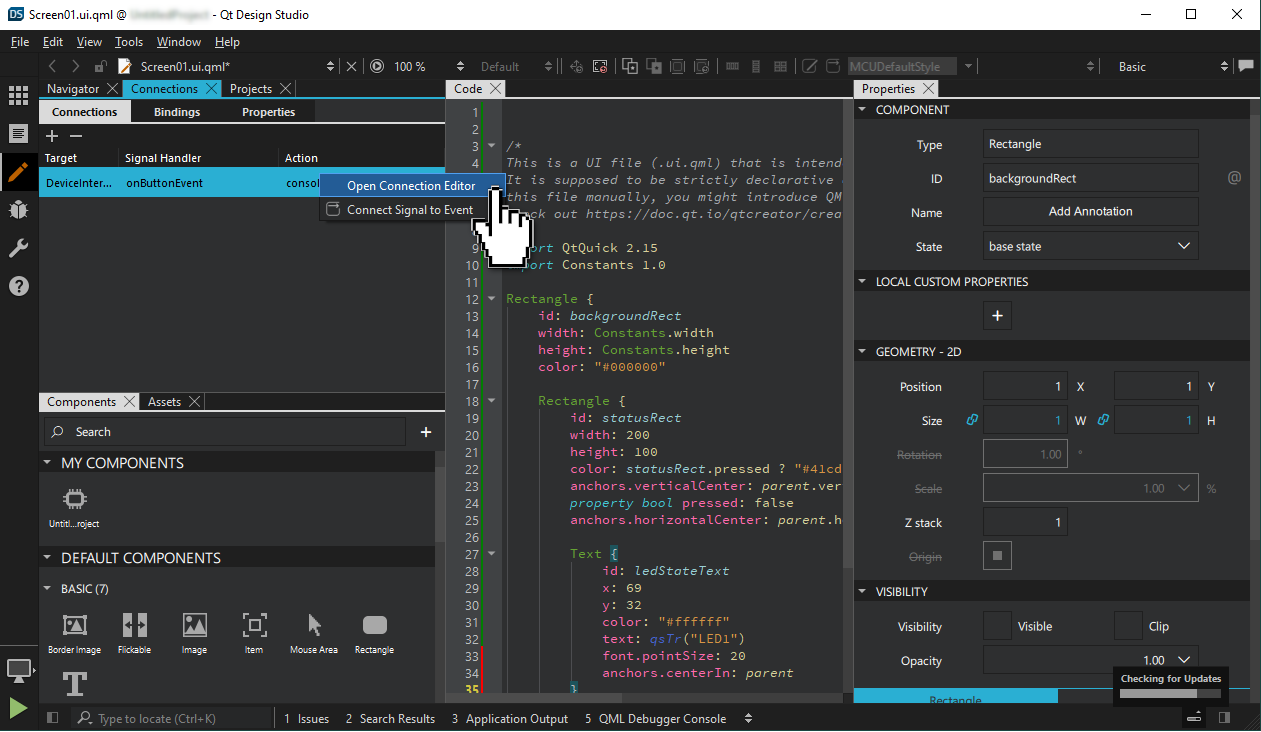
- Add the following code in the Action field:
{
    statusRect.pressed = !statusRect.pressed
    DeviceInterface.toggleLED()
}
This is the QML event handler for the
buttonEventyou defined earlier. Now on press of the button, the event propagates to the QML context, which changes thestatusRect.pressedproperty. This results in changing the color of an UI item. - Use a text editor to change
yourproject.qmlprojectto generate the necessary C++/QML interfaces needed for the singleton object:InterfaceFiles { files: ["C:/path/to/BACKEND_DIR/deviceinterface.h"] }Change the BACKEND_DIR path to the directory containing the
deviceinterface.hfile.For more information, refer to QmlProject InterfaceFiles.
Export application and platform sources
This section provides you step-by-step instructions to create a GHS MULTI IDE project, and integrate application and platform sources exported by the Qt for MCUs tools.
- Create a batch script with the following commands, which calls the
qmlprojectexporterto generate a GHS Multi IDE projectset QUL_ROOT=C:\path\to\QtMCUs\2.5.4 set QMLPROJECT_FILE=C:\path\to\YourProject.qmlproject set BOARDDEFAULTS=%QUL_ROOT%\platform\boards\renesas\rh850-d1m1a-baremetal\cmake\BoardDefaults_32bpp.qmlprojectconfig set RGL_DIR=C:\path\to\rgl_ghs_D1Mx_obj_V2.1.0a set PROJECT_DIR=C:\path\to\PROJECT_DIR %QUL_ROOT%\bin\qmlprojectexporter.exe %QMLPROJECT_FILE% --platform=rh850-d1m1a-baremetal --toolchain=GHS --boarddefaults=%BOARDDEFAULTS% --outdir=%PROJECT_DIR% --project-type=ghs --include-ide-generated-hw-code --board-sdk=%RGL_DIR%
Before running the script, make sure that the following variables are set:
RGL_DIRto the Renesas Graphics Library (RGL) 2.1.0a install path,QUL_ROOTandQMLPROJECT_FILE.PROJECT_DIRto the output directory where you want to place the GHS project files.
Now, run the script from the command prompt to generate the following:
- C++ sources generated from QML in
%PROJECT_DIR%/QtMCUs/generated - The exported platform sources in
%PROJECT_DIR%/QtMCUs/platform - A top-level project file with subproject files in
%PROJECT_DIR%/GHS.
The generated GHS project includes the following:
%PROJECT_DIR%\GHS\project.gpj: the top-level project file%PROJECT_DIR%\GHS\prj\program.gpj: program compile definitions, include directories, compiler and linker options%PROJECT_DIR%\GHS\prj\drivers.gpj: list of RGL sources%PROJECT_DIR%\GHS\prj\QtMCUs\qul_platform.gpj: list of RH850-D1M1A platform sources%PROJECT_DIR%\GHS\prj\QtMCUs\qul_app.gpj: list of generated sources from the qmlproject export%PROJECT_DIR%\GHS\prj\QtMCUs\qul_module_<ModuleName>.gpj: One subproject for each module, including the sources generated for the corresponding QmlProject module.%PROJECT_DIR%\GHS\prj\application.gpj: a convenience empty subproject for the application which you will edit in the next section
For more information, refer to Exporting a Qt for MCUs project with platform sources.
Build application in GHS MULTI IDE
The following instructions guide you through the GHS project adaptation steps needed to build the application:
- Launch the GHS MULTI IDE Project Manager (
multi.exe) - Select File > Open Project and select the top-level
project.gpjfile exported in the earlier section. - Right-click
application.gpjand select Edit. Replace its contents with the following to add the source files from BACKEND_DIR:#!gbuild macro APPLICATION_EXPORT_DIR=C:/path/to/PROJECT_DIR/QtMCUs/generated macro BACKEND_DIR=C:/path/to/BACKEND_DIR [Subproject] -DQUL_STD_STRING_SUPPORT -I${APPLICATION_EXPORT_DIR} # ----- backend ----- ${BACKEND_DIR}/main.cpp ${BACKEND_DIR}/boardutils.cpp ${BACKEND_DIR}/deviceinterface.cppMake sure to set the
APPLICATION_EXPORT_DIRmacro to the directory that has the exported UI sources, and the BACKEND_DIR macro to the directory containingmain.cppand the backend sources you created earlier.Note: Indentation is important in
.gpjproject files. Refer to the MULTI IDE documentation for more information - The application binary name is
application.elfby default. To use a different name, change-o application.elfto-o YourProject.elfin theprogram.gpjproject file. - Finally, add the RGL library sources needed for LED and user button interaction to
application.gpj:${SDK_DIR}/vlib/bsp/board/d1mx_mango/src/hmi/r_bsp_hmi_knob.c${SDK_DIR}/vlib/bsp/board/d1mx_mango/src/hmi/r_bsp_sys_hmi.c${SDK_DIR}/vlib/bsp/hmi/src/r_bsp_hmi_main.c
Your application is now ready. Build your GHS MULTI project and flash it to the RH850 board to test that everything works as intended. Next, you can try to experiment and add support for another LED.
If you make changes to the UI, you have run qmlprojectexporter again to generate new UI sources. The following section describes how to update your project with the newly generated sources.
Making changes to the UI
If you make any changes to the UI parts of your application, export the UI sources again using qmlprojectexporter.
Automatically updating an existing project with new UI sources is not currently implemented. To apply changes made to the UI, you have to update the project files manually.
- Use
qmlprojectexporterto generate new UI source files with the following batch script:set QUL_ROOT=C:\path\to\QtMCUs\2.5.4 set QMLPROJECT_FILE=C:\path\to\YourProject.qmlproject set BOARDDEFAULTS=%QUL_ROOT%\platform\boards\renesas\rh850-d1m1a-baremetal\cmake\BoardDefaults_32bpp.qmlprojectconfig set PROJECT_DIR=C:\path\to\PROJECT_DIR set QMLPROJECT_DIR=%PROJECT_DIR%\QtMCUs\generated %QUL_ROOT%\bin\qmlprojectexporter.exe %QMLPROJECT_FILE% --platform=rh850-d1m1a-baremetal --toolchain=GHS --boarddefaults=%BOARDDEFAULTS% --outdir=%QMLPROJECT_DIR%
- Update the existing project files with the new sources. There is one subproject for the main
.qmlprojectfile, calledqul_app.gpjand one subproject for each module, with the naming schemequl_module_<QmlProjectName>.gpj.You can find a list of generated source files in
%APPLICATION_EXPORT_DIR%\config\<QmlProjectName>.1.compiler_outputs.txt, whereQmlProjectNamecorresponds to the name of a QmlProject. Add the C++ source files from eachcompiler_outputs.txtfile to its respective subproject in GHS MULTI IDE. - If you have added new modules since the initial generation, add them manually as a subproject. To do this, right-click application.gpj and select Add Item into application.gpj. Select Subproject from the popup, and place the new file in
%PROJECT_DIR%\GHS\prj\QtMCUswith the namequl_module_<ModuleName>.gpj.Find the list of generated sources in the
compiler_outputs.txtfile for this module, and add them to the subproject you just created. - Update linked libraries as they might have changed since the last update. You will find the list of required libraries in the
<QmlProjectName>.1.libraries.txtfile(s) in the%APPLICATION_EXPORT_DIR\configdirectory. For example, they might list the following libraries:- Qul::MonotypeUnicode
- Qul::MonotypeUnicodeEngineShaperDisabled
- Qul::PNGDecoderNull
Identify the corresponding libraries for your build type and platform in the
${QUL_DIR}/libfolder and add them toprogram.gpjwith the-ldirective if they are not already listed. For the example libraries listed above, these are the corresponding library files to link against inprogram.gpj:-l${QUL_DIR}/lib/libQulMonotypeUnicode_rh850-d1m1a-baremetal_Windows_ghs-arm_MinSizeRel.a-l${QUL_DIR}/lib/libQulMonotypeUnicodeEngineShaperDisabled_rh850-d1m1a-baremetal_Windows_ghs-arm_MinSizeRel.a-l${QUL_DIR}/lib/libQulPNGDecoderNull_rh850-d1m1a-baremetal_Windows_ghs-arm_MinSizeRel.a
Note: If any of the
libraries.txtfiles listQul::PNGDecoderLodePNG, you must NOT link againstQul::PNGDecoderNull.
Available under certain Qt licenses.
Find out more.
