
C
Create an NXP MCUXpresso IDE project
This topic offers step-by-step instructions to create an NXP MCUXpresso IDE project, and integrate your application and platform sources.
You'll need the MCUXpresso SDK version 2.12.1 or newer that includes both the MCUXpresso IDE and ARM GCC toolchains. You can either use the SDK offered by Qt Online Installer, or download the SDK by yourself.
If you want to build the SDK yourself, install the following components:
- All toolchains (this ensures that both ARM GCC and MCUXpresso files are included)
- FreeRTOS
- VG-Lite GPU Library
Create a new project
Extract the SDK to a directory of your choice, and follow these instructions:
- Launch MCUXpresso IDE and install the downloaded SDK:
- Ensure that you can see the SDK view by selecting Window > Show View > Installed SDKs
- Go to Installed SDKs.
- Right-click on the view and select Import folder.... If you have the SDK as an archive, you can also choose Import archive....
- Select the folder/archive and click Open to import the SDK into the IDE.
- Create a new project for i.MX RT1170 EVKB using File > New > Create a new C/C++ Project.
- Select evkbmimxrt1170 board and click Next.
- In the next screen, select MIMXRT1176DVMAA device package. The project should have the following settings:
- Cores: cm7 core is set to Standalone Role.
- Board: Default board files
- Project Type: C++ Project
- Project Options: SDK Debug Console is set to UART. Both Copy sources and Import other files are selected.
Select also the components on the following list:
- Operating Systems
- FreeRTOS kernel
- Drivers
anatop_aiclockcommondcdc_socelcdifgpioi2ciomuxclcdifv2lpuartmemorymipi_dsinic301pmupxpsoc_mipi_csi2rxxip_device
- CMSIS Include
CMSIS_Include_CMMIMXRT1176_CMSISMIMXRT1176_system
- Utilities
assertdebug_consolelpuart_adapterserial_managerserial_manager_uart
- Board Components
display-hx8394display-rm68191display-rm68200xip_boardxmcd
- Abstraction Layer
dc-fb-commondc-fb-elcdifdc-fb-lcdifv2display-common
- Software Components
display-mipi-dsi-cmdlistsvideo-common
- Project Template
- Board Support > SDK Project Template > evkbmimxrt1170
- Other
- Device > Startup > MIMXRT1176_startup
Click Next to proceed to the next screen.
- In Advanced project settings change the following settings:
- Set Floating Point type: FPv5-D16 (Hard ABI)
- Language standard: GNU C++14 (-std=gnu++14)
Click Finish to complete the project setup.
Configure the pins and import extra SDK components
- Configure the NXP i.MX RT1170 pins using the ConfigTools > Pins option. For more information, refer to Configure NXP i.MX RT1170 pins.
- Import extra SDK components:
- Right-click the project and select Import.
- Select File System.
- Add
<SDK_PATH>/components/gt911for the From directory field and selectfsl_gt911.h/*.cfiles. - Add
<PROJECT_NAME>/gt911for the Into folder field and click Finish. - Import the following directories (including the files and subdirectories in them) from
<SDK_PATH>/middleware/vgliteinto<PROJECT_NAME>/vglite:incVGLiteVGLiteKernel
- Import
startup_MIMXRT1176_cm7.Sfrom<SDK_PATH>/devices/MIMXRT1176/gccinto<PROJECT_NAME>/startup. Removestartup/startup_mimxrt1176_cm7.c/.cppfrom the project.
Export the platform sources
- Run the following command to export the platform sources:
export QUL_ROOT=/path/to/QtMCUs/2.6
$QUL_ROOT/bin/qmlprojectexporter --platform-metadata $QUL_ROOT/lib/QulPlatformTargets_mimxrt1170-evkb-freertos_32bpp_Linux_armgcc-export.json --outdir <DESTINATION_FOLDER> --project-type cmake --no-export-qml
set QUL_ROOT=C:\path\to\QtMCUs\2.6
%QUL_ROOT%\bin\qmlprojectexporter.exe --platform-metadata %QUL_ROOT%\lib\QulPlatformTargets_mimxrt1170-evkb-freertos_32bpp_Windows_armgcc-export.json --outdir <DESTINATION_FOLDER> --project-type cmake --no-export-qml
- Import the exported platform sources into your project:
- Create a new folder named platform under the project.
- Right-click on the folder name and select Import -> File System.
- Browse the platform sources folder in the Import dialog.
- Select all files and folders except FreeRTOSConfig.h, which is already generated by the IDE.
- Open platform/boards/nxp/mimxrt1170-evkb-freertos/platform_config.h and comment out
#define QUL_ENABLE_PERFORMANCE_LOGGINGto disable performance logging.
Note: To enable performance logging, you must have
#define INCLUDE_uxTaskGetStackHighWaterMark 1in the FreeRTOSConfig.h. You must also defineQUL_STACK_SIZEwith a value that matches the stack size of Qt Quick Ultralite application task (set to 32768 by default).As of Qt Quick Ultralite 2.6 platform sources expect the following definitions to be defined:
BOARD_MIPI_PANEL_TOUCH_IRQ=GPIO2_Combined_16_31_IRQnBOARD_MIPI_PANEL_TOUCH_IRQ_HANDLER=GPIO2_Combined_16_31_IRQHandler
Either add these definitions or replace them in
platform/boards/nxp/mimxrt1170-evkb-freertos/platform_irq.candplatform/boards/nxp/mimxrt1170-evkb-freertos/platform_touch.cpp.
Develop the application backend
- Create UI communicator struct
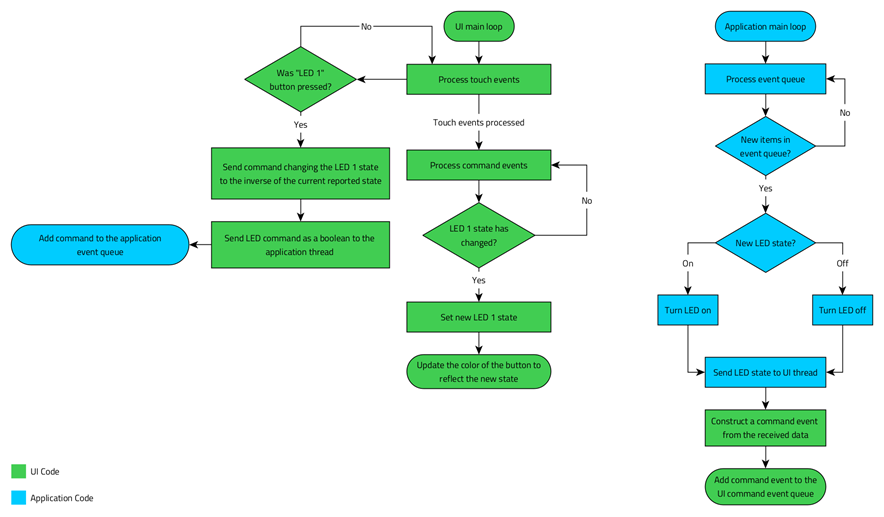
The backend enables the application's UI to communicate with the platform and get the required information from the hardware. In this case, the communicator gets the status of the on-board LED. The following diagram describes the workflow between the two components:
- Right-click the source folder in the Project Explorer and select New > Class.
- Add UICommunicator to the Class name field. Rename the Header and Source to
uicommunicator.handuicommunicator.cpprespectively, and click Finish. - Open uicommunicator.h and modify it to look like the following:
#ifndef UICOMMUNICATOR_H
#define UICOMMUNICATOR_H

#include <qul/singleton.h>
#include <qul/property.h>
#include <qul/eventqueue.h>

struct UICommunicator : public Qul::Singleton<UICommunicator>
{
    friend struct Qul::Singleton<UICommunicator>;

    enum Command { LED1State };

    Qul::Property<bool> led1Status;

    void sendFromUI(Command command, bool commandData);
    void receiveToUI(Command command, bool commandData);

private:
    UICommunicator();
    UICommunicator(const UICommunicator &);
    UICommunicator &operator=(const UICommunicator &);
};

struct CommandEvent
{
    UICommunicator::Command command;
    bool commandData;
};

class CommandEventQueue : public Qul::EventQueue<struct CommandEvent, Qul::EventQueueOverrunPolicy_Discard, 10>
{
public:
    void onEvent(const CommandEvent &commandEvent);
};

namespace UI {
void sendToThread(bool led1Data);
}

#endif // UICOMMUNICATOR_H
The header declares the
UICommunicatorstruct, which inheritsQul::Singleton, enabling easy integration with UI code. For more information, refer to Singleton class reference. The header also declares theCommandenumeration that defines a list of commands, and theCommandEventQueueto manage the queue. The enumeration enables communication between the UI and the application. The header also declares theled1Statusproperty to indicate the status of the on-board LED. This property is accessible in the QML context, to determine the color of the button. TheUICommunicatorclass also has thesendFromUIandreceiveToUIfunctions to send and receive commands. It also has theCommandEventQueueto communicate with the UI thread in a thread-safe way. Instead of callingreceiveToUIfrom the application thread, the the commands are added to theCommandEventQueue. The Qt Quick Ultralite thread processes the queue by callingreceiveToUI. - Open uicommunicator.cpp and modify it to look like the following:
#include "uicommunicator.h"
#include "app_thread.h"

UICommunicator::UICommunicator()
{
    led1Status.setValue(false);
}

void UICommunicator::sendFromUI(Command command, bool commandData)
{
    QUL_UNUSED(command)

    App::sendToThread(commandData);
}

void UICommunicator::receiveToUI(Command command, bool commandData)
{
    switch (command) {
    case LED1State:
        led1Status.setValue(commandData);
        break;
    default:
        break;
    }
}

void CommandEventQueue::onEvent(const CommandEvent &commandEvent)
{
    UICommunicator::instance().receiveToUI(commandEvent.command, commandEvent.commandData);
}

static CommandEventQueue commandEventQueue;

void UI::sendToThread(bool led1Data)
{
    CommandEvent commandEvent;
    commandEvent.command = UICommunicator::LED1State;
    commandEvent.commandData = led1Data;
    commandEventQueue.postEvent(commandEvent);
}
The
UICommunicatorclass initializesled1Statustofalse. ItssendFromUI()member function sends a boolean value indicating the LED's new state to the application thread. ThereceiveToUI()member function uses the command argument to determine if the property must be updated. Next, theCommandEventQueueclass overrides theonEvent()function, which callsreceiveToUI()on theUICommunicatorinstance with thecommandandcommandDataparameters. In addition, a static instance ofCommandEventQueueis created, which is used by theUI::sendToThread()function to post events.UI::sendToThread()constructs aCommandEventfrom the given boolean value and adds it to thecommandEventQueuefor processing. It is called from application thread when the LED's state is changed.
Export the UI sources
- Export the UI sources using the
qmlprojectexportertool.Before exporting UI sources, add the
UICommunicatorinterface to the UI project:- Open
path/to/YourProject.qmlproject - Add the following inside
Project:InterfaceFiles { files: ["path/to/mcuxpresso/project/source/uicommunicator.h"] }
export QUL_ROOT=/path/to/QtMCUs/2.6
export QMLPROJECT_FILE=/path/to/YourProject.qmlproject
export BOARDDEFAULTS=$QUL_ROOT/platform/boards/nxp/mimxrt1170-evkb-freertos/cmake/BoardDefaults_32bpp.qmlprojectconfig
export APPLICATION_EXPORT_DIR=<DESTINATION_FOLDER>/ui_sources

$QUL_ROOT/bin/qmlprojectexporter $QMLPROJECT_FILE --platform=mimxrt1170-evkb-freertos --toolchain=GCC --boarddefaults=$BOARDDEFAULTS --outdir=$APPLICATION_EXPORT_DIR
set QUL_ROOT=C:\path\to\QtMCUs\2.6
set QMLPROJECT_FILE=C:\path\to\YourProject.qmlproject
set BOARDDEFAULTS=%QUL_ROOT%\platform\boards\nxp\mimxrt1170-evkb-freertos\cmake\BoardDefaults_32bpp.qmlprojectconfig
set APPLICATION_EXPORT_DIR=<DESTINATION_FOLDER>\ui_sources

%QUL_ROOT%\bin\qmlprojectexporter.exe %QMLPROJECT_FILE% --platform=mimxrt1170-evkb-freertos --toolchain=GCC --boarddefaults=%BOARDDEFAULTS% --outdir=%APPLICATION_EXPORT_DIR%
- Open
- Import the UI sources into the ui_sources top-level directory:
- Right-click on project name in Project Explorer.
- Go to New -> Folder.
- On the New Folder wizard, click on Advanced and select Link to alternate location.
- Browse the
<DESTINATION_FOLDER>\ui_sourcesfolder, generated in the earlier step. - Click Finish.
Note: By creating a link to the exported sources directory, changes to the UI made in Qt Design Studio get updated automatically to the project when qmlprojectexporter is run.
Configure the MCUXpresso IDE project
- Select your project and select File > Properties to make the following changes:
- Select C/C++ General > Paths and Symbols > Source Location and add the following to the list:
ui_sourcesplatformgt911vglite
- Add include paths from IDE-Import-Instructions.txt to the C++ include directories list under C/C++ General > Paths and Symbols > Includes. Check Add to all configurations and Add to all languages. For this application, add the following include directories:
<QUL_ROOT>/include<QUL_ROOT>/src/3rdparty/qoi<QUL_ROOT>/src/3rdparty/minihdlc<QUL_ROOT>/src/3rdparty/nanopbplatform/commonfrom workspaceplatform/boards/nxp/mimxrt1170-evkb-freertosfrom workspaceplatform/boards/nxp/mimxrt1170-evkb-freertos/displayfrom workspacegt911from workspacevglite/incfrom workspacevglite/VGLite/rtosfrom workspacevglite/VGLiteKernelfrom workspacevglite/VGLiteKernel/rtosfrom workspaceui_sourcesfrom workspace
- Select C/C++ General > Paths and Symbols > Symbols and add the following preprocessor definitions:
- For all configurations and languages:
CPP_NO_HEAPThis disables the defaultmallocandfreeimplementations by introducing empty implementations incpp_config.cpp.FSL_RTOS_FREE_RTOSPRINTF_ADVANCED_ENABLE 0PRINTF_FLOAT_ENABLE 0SCANF_ADVANCED_ENABLE 0SCANF_FLOAT_ENABLE 0SKIP_SYSCLK_INITUSE_SDRAMSDK_I2C_BASED_COMPONENT_USED- Change
XIP_BOOT_HEADER_DCD_ENABLEto1. - Remove
__MCUXPRESSO.
- For GNU C++
VGLITE_POINT_FILTERING_FOR_SIMPLE_SCALEQUL_STD_STRING_SUPPORT
- For all configurations and languages:
- Select C/C++ Build > Settings > Tool Settings > MCU C++ Linker > Libraries and add the following libraries to the list:
- QulCore_cortex-m7-hf-fpv5-d16_Linux_armgcc_MinSizeRel
- QulMonotypeUnicodeEngineShaperDisabled_cortex-m7-hf-fpv5-d16_Linux_armgcc_MinSizeRel
- QulMonotypeUnicode_cortex-m7-hf-fpv5-d16_Linux_armgcc_MinSizeRel
- QulPNGDecoderLodePNG_cortex-m7-hf-fpv5-d16_Linux_armgcc_MinSizeRel
- QulShapes_cortex-m7-hf-fpv5-d16_Linux_armgcc_MinSizeRel
- QulCore_cortex-m7-hf-fpv5-d16_Windows_armgcc_MinSizeRel
- QulMonotypeUnicodeEngineShaperDisabled_cortex-m7-hf-fpv5-d16_Windows_armgcc_MinSizeRel
- QulMonotypeUnicode_cortex-m7-hf-fpv5-d16_Windows_armgcc_MinSizeRel
- QulPNGDecoderLodePNG_cortex-m7-hf-fpv5-d16_Windows_armgcc_MinSizeRel
- QulShapes_cortex-m7-hf-fpv5-d16_Windows_armgcc_MinSizeRel
Note: Libraries must be in the order listed. Otherwise, the linker may complain about missing symbols due to the wrong linking order.
- Select C/C++ Build > Settings > Tool Settings > MCU C++ Linker > Libraries and add
<Qt-install-dir>/QtMCUs/<QUL-version>/libto the list of library search paths. - Select C/C++ Build > Settings > Tool Settings > MCU C++ Linker > Miscellaneous > Linker flags and add
-specs=nosys.specs. - Select C/C++ Build > Settings > Tool Settings > MCU C++ Linker > Managed Linker Script and uncheck Manage linker script, and add
../platform/boards/nxp/mimxrt1170-evkb-freertos/cmake/armgcc/MIMXRT1176xxxxx_cm7_flexspi_nor_sdram.ldto the Linker script field. - Select C/C++ Build > Settings > Tool Settings > MCU C++ Linker > General and uncheck the No startup or default libs option.
- Select C/C++ General > Paths and Symbols > Source Location and add the following to the list:
- Open source/FreeRTOSConfig.h and make the following changes:
configTICK_RATE_HZ 200->1000configMINIMAL_STACK_SIZE 90->256configTOTAL_HEAP_SIZE 10240->512 * 1024 * 15configAPPLICATION_ALLOCATED_HEAP 0->1- Add
#define ucHeap __HeapBase - Comment out or remove
#define xPortSysTickHandler SysTick_Handler
- Open source/cpp_config.cpp and make the following changes:
- Add
#include <FreeRTOS.h>
#include <portable.h>
#include <task.h>
- Replace all
malloc()andfree()calls withpvPortMalloc()andvPortFree()calls respectively.Note: Do not rename the function definitions inside
#ifdef CPP_NO_HEAP. - If you want, you can also replace the empty
malloc()andfree()implementations with calls to FreeRTOS memory allocation functions.
- Add
Finalize the application backend
- Open
source/<project-name>.cppand replace the contents with the following code:Note: Replace
YOUR_UI_APPwith exported UI application name.#include <app_thread.h> #include <YOUR_UI_APP.h> #include <qul/application.h> #include <qul/qul.h> #include <platforminterface/log.h> #include <FreeRTOS.h> #include <task.h> #include <board.h> static void Qul_Thread(void *argument); static void App_Thread(void *argument); int main() { Qul::initHardware(); Qul::initPlatform(); if (xTaskCreate(Qul_Thread, "Qul_Thread", 32768, 0, 4, 0) != pdPASS) { Qul::PlatformInterface::log("Task creation failed!.\r\n"); configASSERT(false); } if (xTaskCreate(App_Thread, "App_Thread", 200, 0, 4, 0) != pdPASS) { Qul::PlatformInterface::log("Task creation failed!.\r\n"); configASSERT(false); } vTaskStartScheduler(); // Should not reach this point return 1; } static void Qul_Thread(void *argument) { (void) argument; Qul::Application _qul_app; static struct ::YOUR_UI_APP _qul_item; _qul_app.setRootItem(&_qul_item); #ifdef APP_DEFAULT_UILANGUAGE _qul_app.settings().uiLanguage.setValue(APP_DEFAULT_UILANGUAGE); #endif _qul_app.exec(); } static void App_Thread(void *argument) { App::run(); } extern "C" { void vApplicationStackOverflowHook(TaskHandle_t xTask, signed char *pcTaskName) { (void) xTask; (void) pcTaskName; Qul::PlatformInterface::log("vApplicationStackOverflowHook"); configASSERT(false); } void vApplicationMallocFailedHook(void) { Qul::PlatformInterface::log("vApplicationMallocFailedHook"); configASSERT(false); } }
main()initializes the board and creates the following two tasks:Qul_Threadto run UIApp_Threadto handle the LED commands, and signal UI to update the button color based on the LED status.
- Right-click source folder and select New > Header File. Name it as
app_thread.hand add the following:#ifndef APP_THREAD_H_ #define APP_THREAD_H_ namespace App { void run(); void sendToThread(bool ledStatus); } // namespace App #endif /* APP_THREAD_H_ */
- Right-click the source folder and select New > Source File. Name it as
app_thread.cppand add the following code:#include "app_thread.h" #include "uicommunicator.h" #include "board.h" #include <fsl_gpio.h> #include <FreeRTOS.h> #include <queue.h> namespace App { static QueueHandle_t appQueue = NULL; void run() { // enable SW7/WAKE UP button interrupt NVIC_SetPriority(BOARD_USER_BUTTON_IRQ, configLIBRARY_MAX_SYSCALL_INTERRUPT_PRIORITY); EnableIRQ(BOARD_USER_BUTTON_IRQ); USER_LED_INIT(0U); // initialize LED to be off appQueue = xQueueCreate(20, 1); bool ledState; while (true) { if (pdTRUE == xQueueReceive(appQueue, &ledState, portMAX_DELAY)) { if (ledState) USER_LED_ON(); else USER_LED_OFF(); UI::sendToThread(ledState); } } } void sendToThread(bool ledStatus) { if (appQueue) { xQueueSend(appQueue, &ledStatus, 0); } } } // namespace App extern "C" void BOARD_USER_BUTTON_IRQ_HANDLER(void) { GPIO_PortClearInterruptFlags(BOARD_USER_BUTTON_GPIO, 1U << BOARD_USER_BUTTON_GPIO_PIN); bool ledStatus = 0x1 ^ GPIO_PinRead(BOARD_USER_LED_GPIO, BOARD_USER_LED_GPIO_PIN); if (App::appQueue) xQueueSendFromISR(App::appQueue, &ledStatus, NULL); }
This file defines a simple app thread and all its related functions. First,
appQueueis defined to store commands that toggle the board's LED state (on or off). TheApp::runfunction is the main loop of theapp_thread. It enables interrupts for the user button on the board, initializes one of the board LEDs to be off, and creates a queue for the thread. After this, the thread enters an infinite loop waiting for the commands to toggle the LED state. This status is then sent to UI (Qt Quick Ultralite) thread.Next, we have
App::sendToThreadfunction which posts the given led state to theappQueue. Last, there is an IRQ handler for the user button. When the button is pressed, it checks the current state of the LED and posts an inverse of that state to theappQueue.
Your application is now ready. Build and flash it to the NXP i.MX RT1170 board to test that everything works as intended.
Available under certain Qt licenses.
Find out more.